Welcome to My Knowledge Engine
My Knowledge Engine (MKE) is your personal system for clarity, mastery, and lifelong organization. It brings structure to your thinking, memory to your ideas, and order to your digital life.
This guide will walk you through every major feature, show you how to get the most out of the platform, and help you build a knowledge system that grows with you for years.
What My Knowledge Engine Is
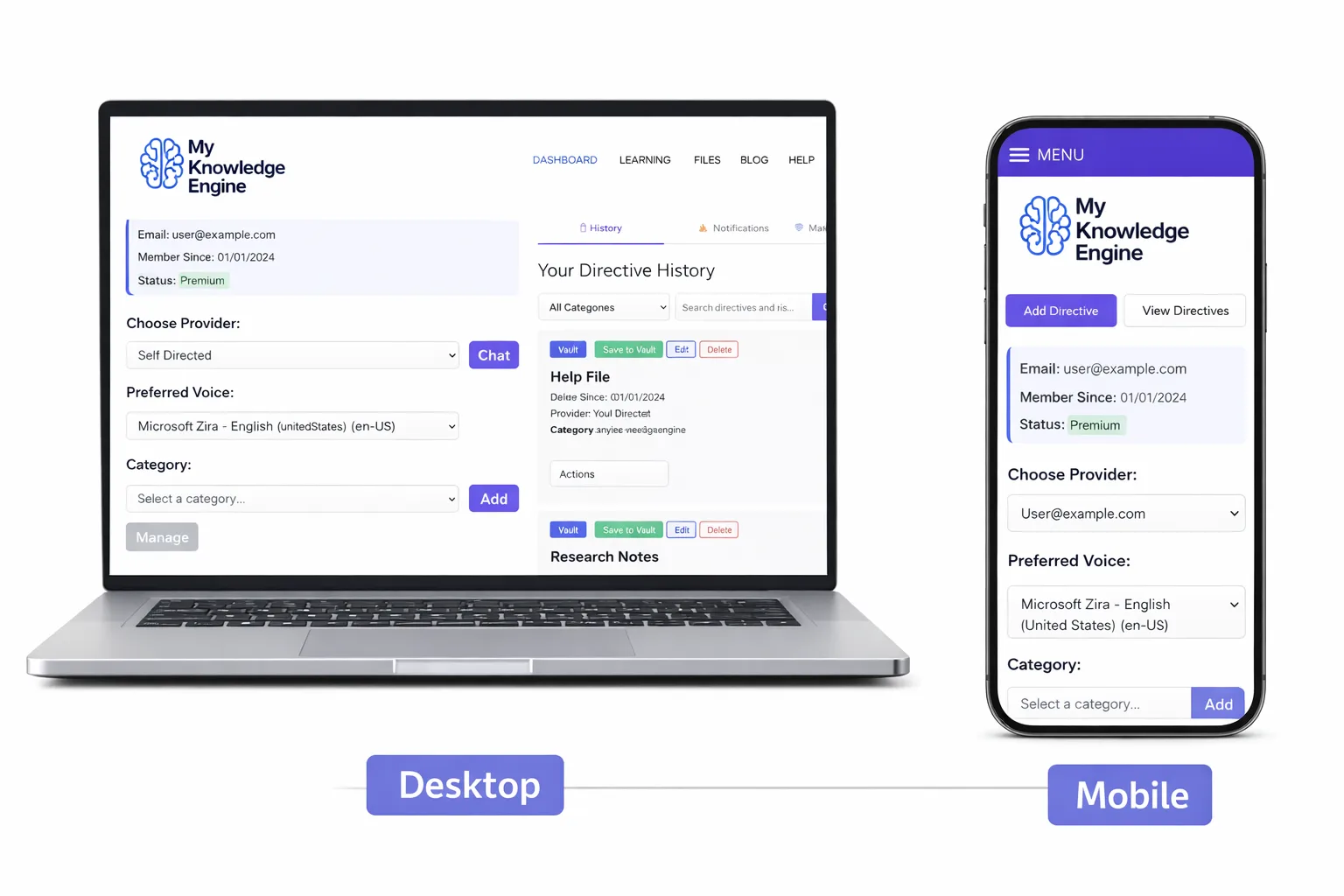
My Knowledge Engine is a personal operating system for your mind. It’s designed to help you capture ideas, organize information, build knowledge, and create clarity in every area of your life.
Unlike traditional note apps, MKE is built around structure, retrieval, and long-term thinking. Everything you store is easy to find, easy to update, and easy to build upon.
The Philosophy Behind MKE
MKE is built on a simple belief: your knowledge should work for you, not against you. Most tools create clutter. MKE creates clarity.
Every feature is designed around three principles:
- Structure over chaos — your mind works better when your tools are organized.
- Retrieval over storage — information is only useful if you can find it instantly.
- Growth over stagnation — your knowledge should evolve as you do.
This philosophy shapes the Vault, Directives, Learning Manager, and every workflow inside the system.
Working on Large Academic or Professional Projects
My Knowledge Engine is especially helpful when you are working on a large project that needs to be built in smaller, manageable pieces. Instead of writing everything in one long document, you can break your work into focused segments and refine each one individually with your AI provider.
Why This Helps
- Modular Workflow: Complex topics naturally break into definitions, sections, examples, or arguments.
- Better Clarity: Each idea gets its own space, making it easier to improve and reorganize.
- Reusable Notes: Concepts, explanations, and examples can be saved once and reused across future projects.
- Less Overwhelm: You never have to manage a huge document all at once.
Examples of Projects This Works Well For
- College assignments and research papers
- Technical or scientific writing
- Business reports or planning documents
- Any project with multiple sections or moving parts
This approach turns My Knowledge Engine into a personal research notebook and writing system, helping you think more clearly and build high‑quality work in a structured, efficient way.
Real Example Workflow
Here’s a practical example of how My Knowledge Engine can help you build a large, multi‑part project in a clear and efficient way. This workflow applies to academic assignments, research papers, technical writing, business planning, and any project that benefits from being built in smaller, focused pieces.
1. Break the Project Into Segments
Instead of writing everything in one long document, identify the major components of your project. For example: introduction, key concepts, definitions, arguments, examples, analysis, and conclusion.
2. Create a Note for Each Piece
Add each segment as its own note in your Vault. This keeps your ideas organized and gives you space to refine each part individually without losing track of the whole.
3. Refine Each Segment With Your AI Provider
Use your preferred AI model to expand, clarify, rewrite, or improve each note. Because each piece is isolated, the AI stays focused and produces higher‑quality results.
4. Reorganize and Improve as You Go
As your understanding grows, you can update, reorder, or expand your notes. The Vault makes it easy to adjust your structure without disrupting your entire project.
5. Assemble the Final Document
Once each segment is polished, combine your notes into a final draft. Because each piece was refined individually, the final document comes together cleanly and with far less effort.
This workflow turns My Knowledge Engine into a powerful thinking environment — helping you build complex work step by step, with clarity and confidence.
Dashboard Overview
The Dashboard is your command center. It gives you instant access to your Vault, Directives, Learning Manager, categories, and system tools.
Main Components
- Knowledge Vault — your notes, ideas, and long-term knowledge.
- Directives — your personal rules and AI instructions.
- Learning Manager — track skills, progress, and growth.
- Categories — organize everything with structure.
- Support — access help, troubleshooting, and documentation.
Knowledge Vault
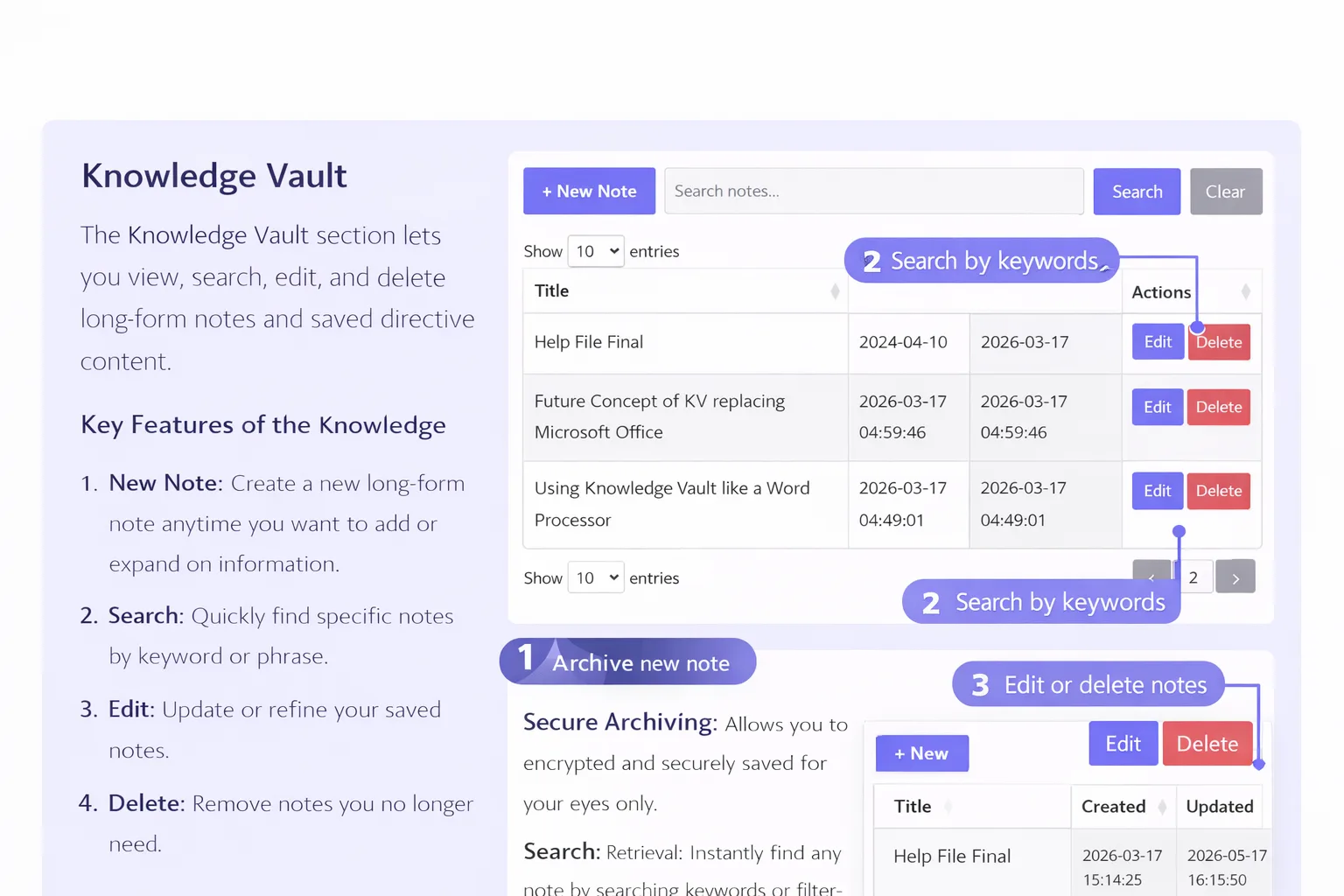
The Knowledge Vault is the heart of MKE. It’s where your ideas, notes, research, and long-term knowledge live. Everything is organized, searchable, and instantly retrievable.
Create a New Note
Click + New Note to create a new entry. Notes can include text, categories, and directives.
Search Your Notes
Use the search bar to instantly filter your Vault. Search is real-time and works across titles, content, and categories.
Edit & Delete Notes
Each note includes Edit and Delete actions. These work across all pages of your Vault, even when paginated.
Vault Count Indicator
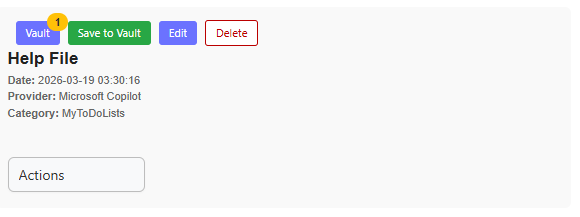
The Vault button includes a live count showing how many items you currently have saved. This gives you instant awareness of your stored notes without needing to open the Vault.
What It Shows
- Total number of saved notes
- Updates automatically as you add or delete items
- Works across all categories and pages
Why It’s Helpful
- Quick glance overview of your knowledge
- No extra clicks to check your Vault
- Makes the dashboard more informative and responsive
ThoughtCanvas
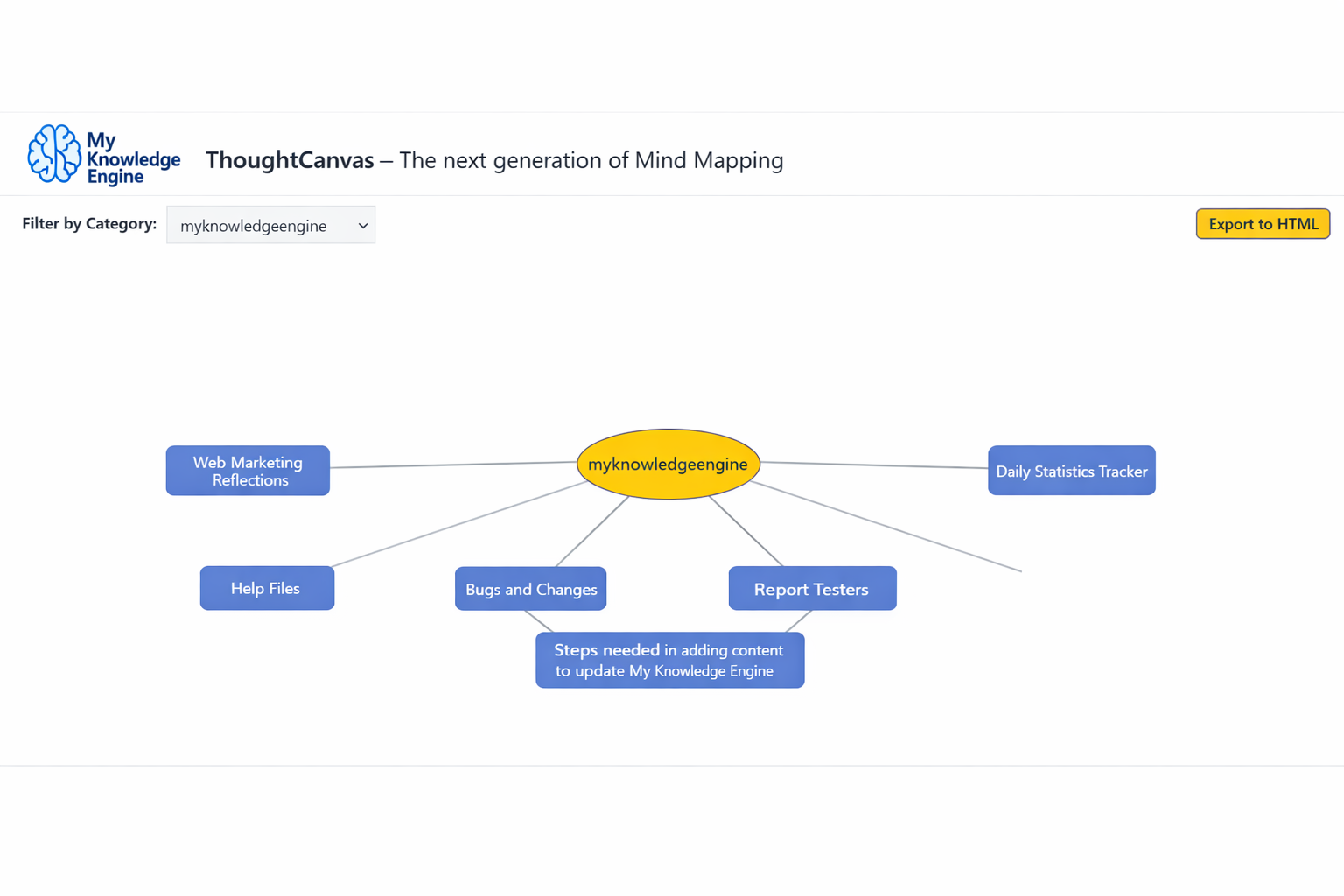
ThoughtCanvas is your visual thinking engine — a space to map ideas, explore connections, and capture insights in a structured, interactive format.
You can launch it directly from the dashboard using the “Launch ThoughtCanvas” block. This opens a modal canvas where you can:
- Create and connect nodes representing thoughts, ideas, or directives
- Drag and arrange elements to reflect your mental flow
- Save your canvas to the Vault for future reuse
- Export your canvas as HTML for portability and sharing
ThoughtCanvas is designed to help you see your thinking, not just write it down. It’s ideal for brainstorming, outlining, planning, and organizing complex ideas visually.
Directives
Directives are one of the most powerful features in My Knowledge Engine. They act as your personal rules, preferences, and behavioral instructions that guide how your AI models respond to you.
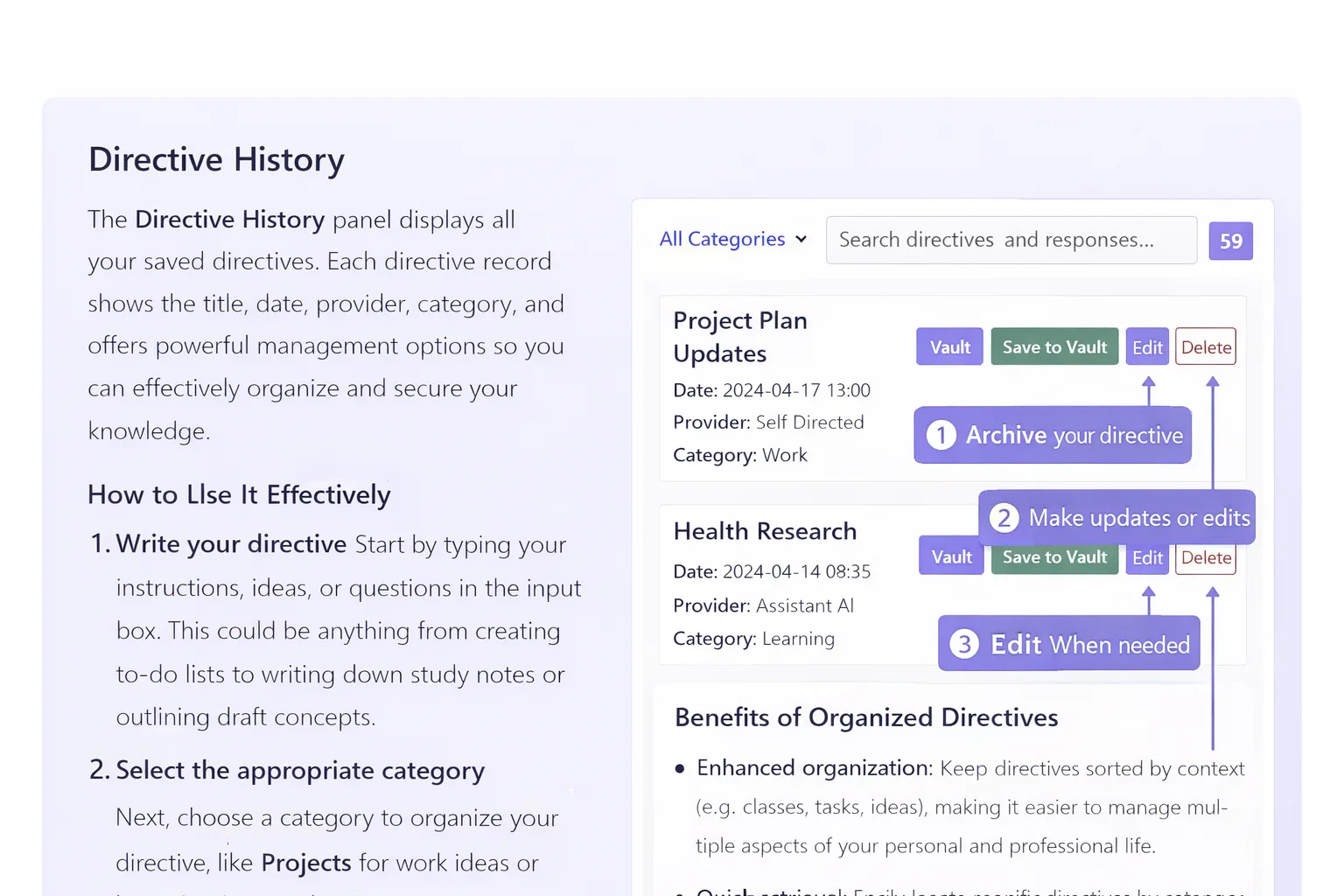
Instead of repeating your preferences every time, you store them once as Directives — and the system remembers them.
What You Can Store as Directives
- Your writing style and tone preferences
- Formatting rules you always want followed
- Personal facts you want the AI to remember
- Boundaries and constraints
- Long-term project instructions
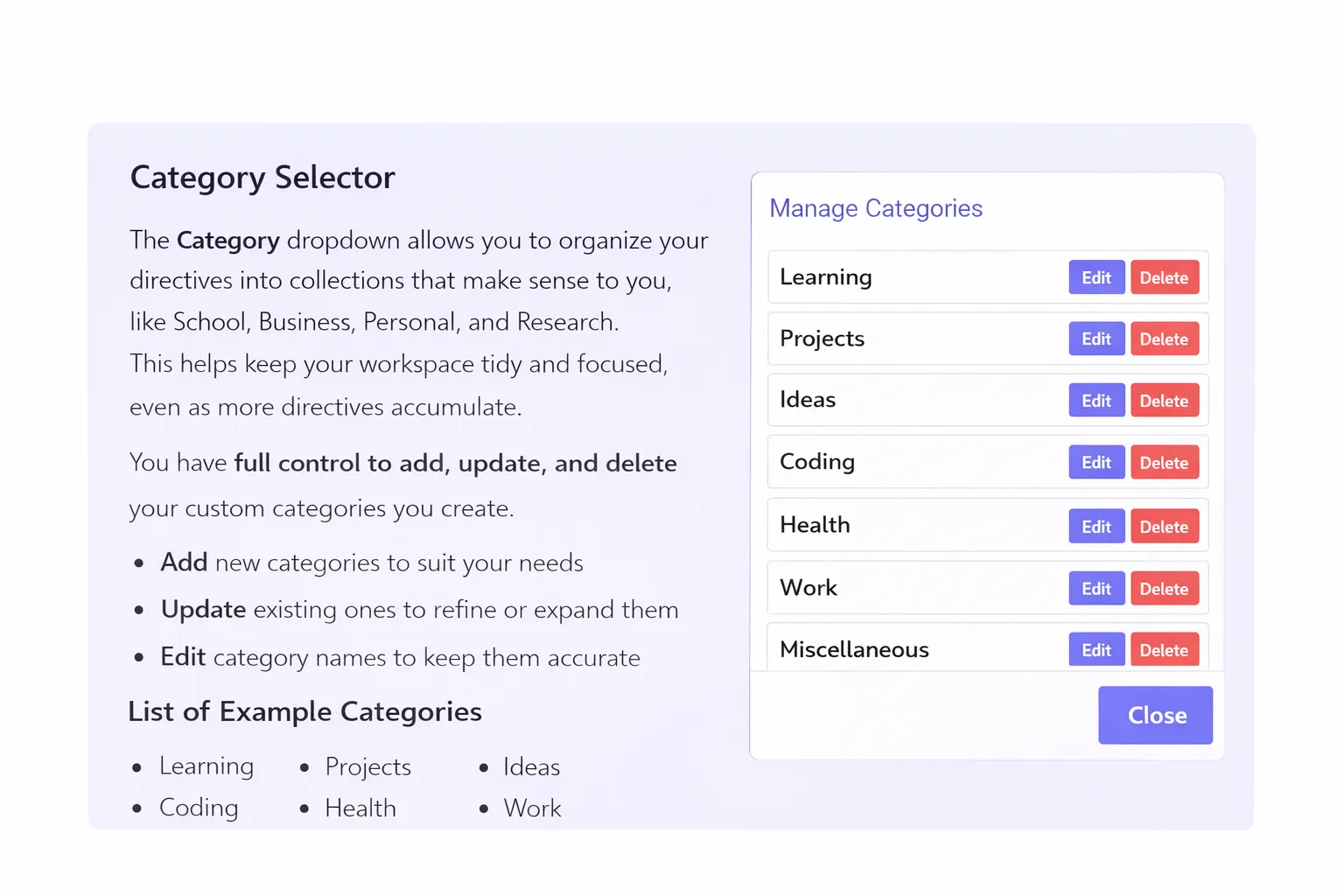
Creating a Directive
Click + New Directive to create a new rule. Give it a clear title and description so you can easily find it later.
Editing & Organizing Directives
Directives can be edited, categorized, and updated at any time. The more precise your directives, the more consistent your AI experience becomes.
Learning Manager
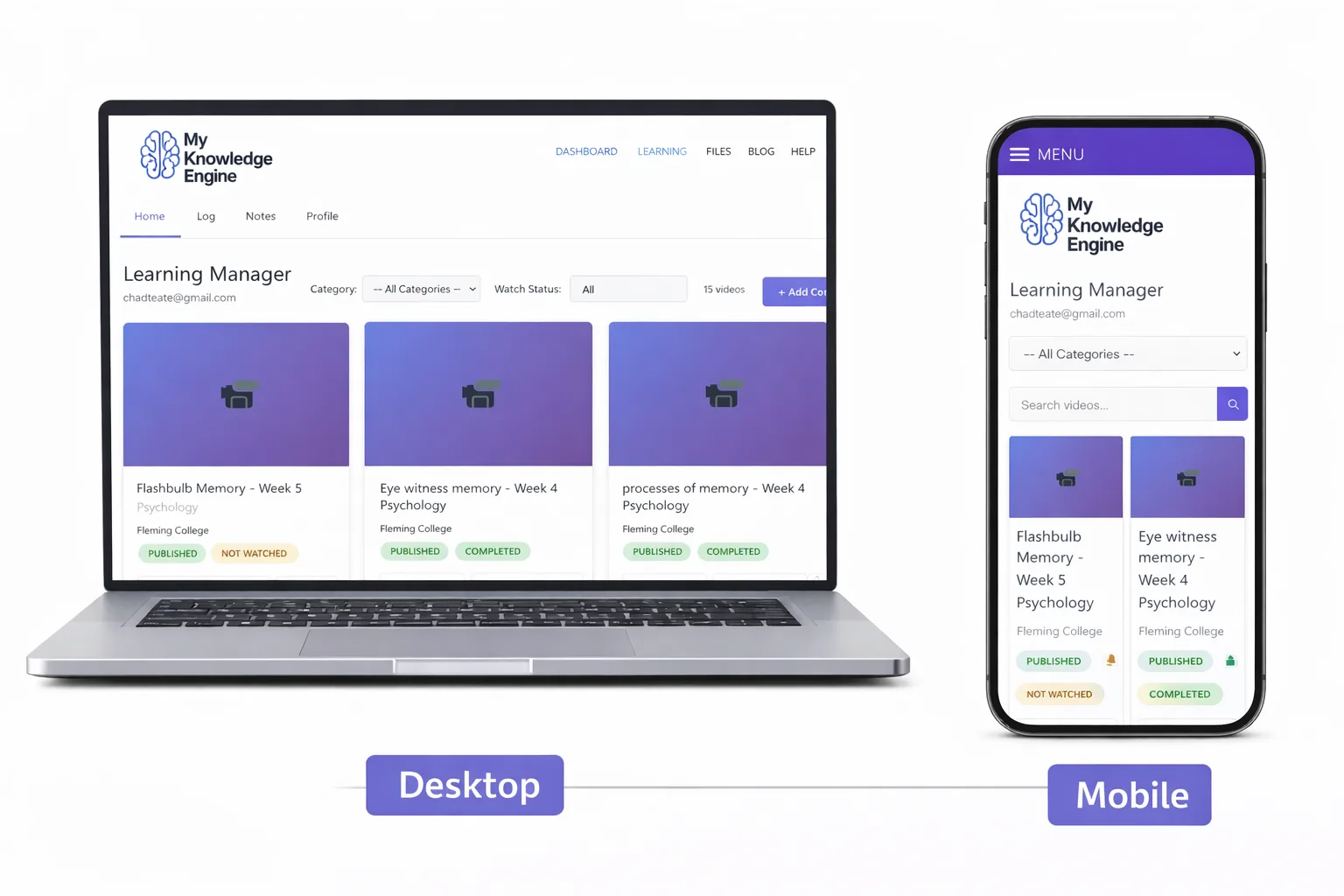
The Learning Manager is your personal growth engine. It helps you track skills, progress, and long-term learning goals in a structured, motivating way.
Why the Learning Manager Matters
Most people learn reactively. MKE helps you learn intentionally. You can track what you’re studying, what you’ve mastered, and what you want to improve next.
Creating a Learning Item
Click + New Learning Item to add a new skill or topic. Include a description, category, and progress level.
Tracking Progress
Update your progress as you learn. Over time, you’ll build a visual map of your growth across all areas of your life.
File Manager
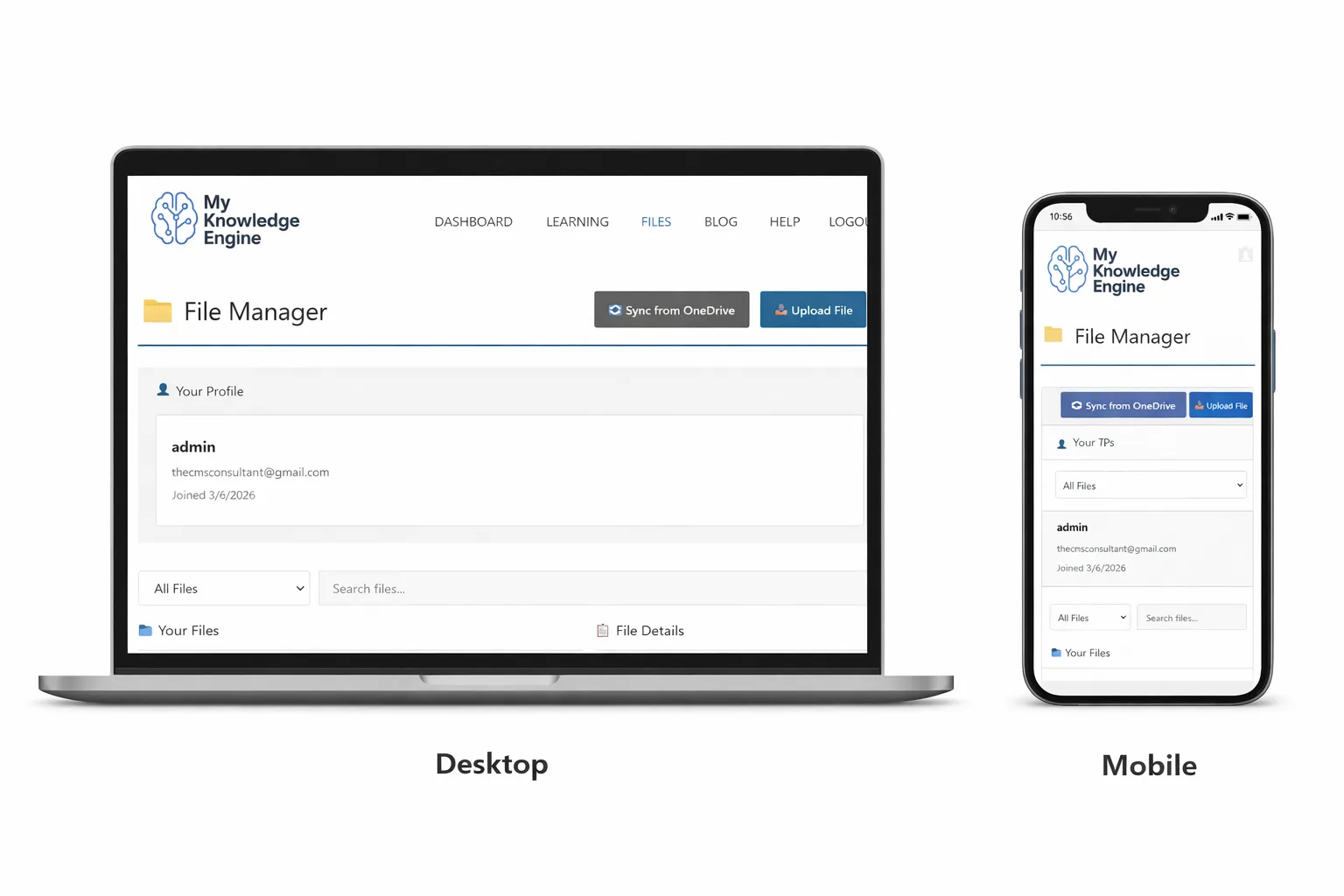
The File Manager is your secure hub for documents, uploads, and cloud-synced files. Use it to bring important PDFs, notes, and resources into your system so everything you need lives inside My Knowledge Engine.
What you can do here
- Sync from OneDrive: Pull files directly from your connected OneDrive into your File Manager.
- Upload files: Add PDFs, docs, and other supported files from your device.
- View your profile: Confirm which account you’re using and when you joined.
- Filter by category: Use the All Files dropdown to narrow what you see.
- Search files: Use the search bar to quickly find a file by name or keyword.
Layout overview
- Top bar: File Manager title, Sync from OneDrive, and Upload File buttons.
- Your Profile: Username, email, and join date for quick context.
- Controls: File category dropdown and search field.
- Your Files & File Details: The main area where files and their details appear.
Category System
Categories give your knowledge structure. They help you organize notes, directives, and learning items into meaningful groups that match your mental model.
Why Categories Matter
Without structure, knowledge becomes noise. Categories turn scattered information into a system you can trust.
Creating Categories
Click + New Category to create a new organizational group. Categories can be broad or specific — whatever fits your workflow.
Assigning Categories
When creating or editing notes, directives, or learning items, assign categories to keep everything organized and easy to retrieve.
Search & Filtering
MKE includes fast, real-time search across your Vault, Directives, and Learning Manager. Search is instant and works across titles, content, categories, and metadata.
Real-Time Search
As you type, results update instantly. This makes it easy to find exactly what you need without digging through menus.
Filtering by Category
Use category filters to narrow your results. This is especially powerful when your Vault grows into hundreds or thousands of entries.
Sorting
Sort by title, creation date, update date, or category to view your information from different angles.
Autosave & Versioning
MKE includes a built-in autosave and versioning system to protect your work. Every time you edit a note, directive, or learning item, the system creates a snapshot.
Why Autosave Matters
Losing work is one of the most frustrating experiences in any system. Autosave ensures your content is preserved even if you close the browser, refresh the page, or encounter an error.
Version History
Each item includes a version history so you can roll back to previous versions if needed. This gives you confidence to experiment and refine your ideas without fear of losing progress.
User Settings
User Settings let you customize how My Knowledge Engine looks, feels, and behaves. This is where you align the system with your personal workflow.
Profile & Identity
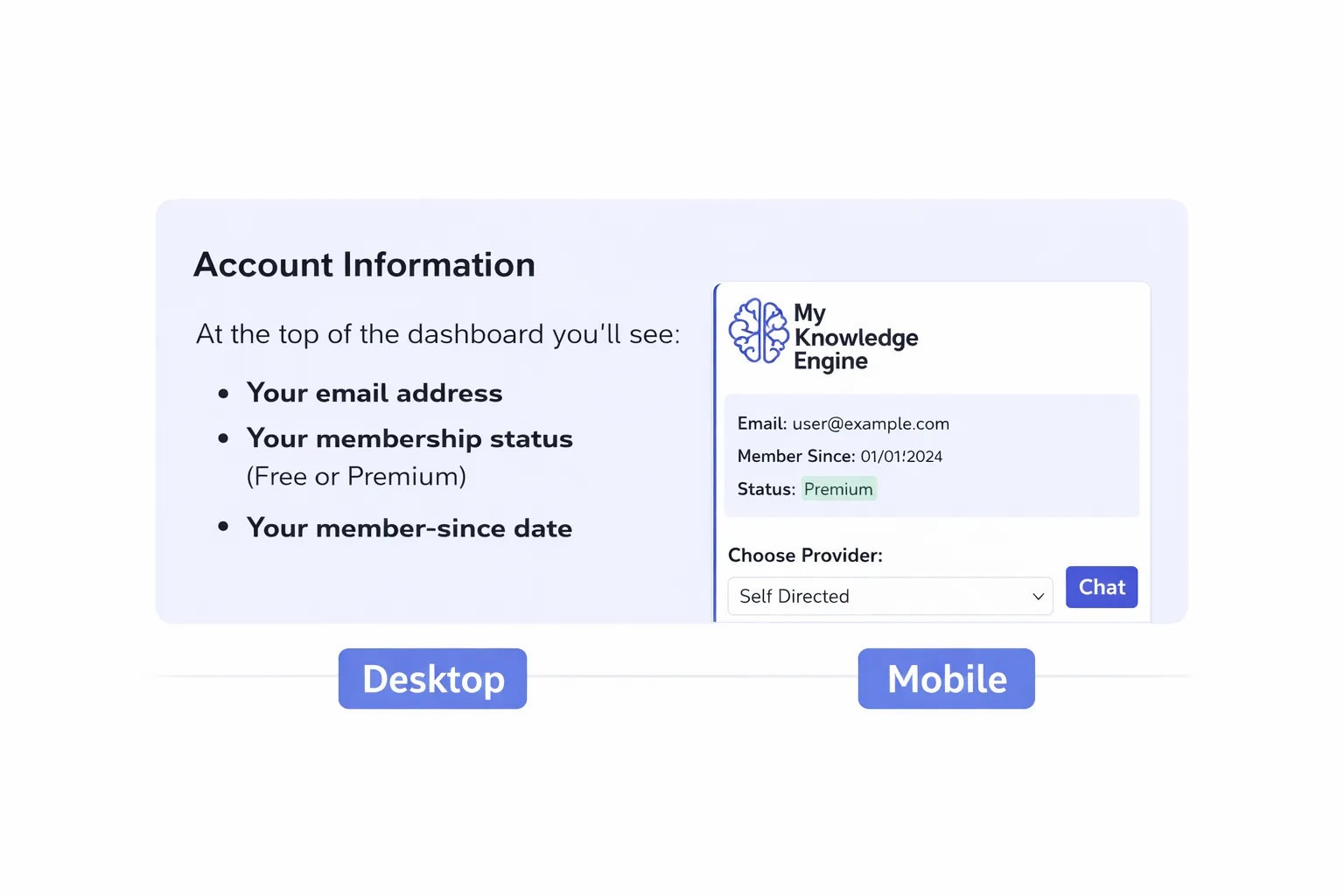
Update your display name, email, and other basic profile details. These settings help personalize your experience across the platform.
Preferences
Configure default views, sorting options, and other preferences so that MKE opens exactly the way you like to work.
Appearance
Adjust visual settings (where available) to match your focus style — whether that’s minimal, high-contrast, or more expressive.
Support & Troubleshooting
If something doesn’t look right or doesn’t behave as expected, this section helps you quickly diagnose and resolve common issues.
Basic Checks
- Refresh the page and try again.
- Confirm you’re logged in with the correct account.
- Try a different browser if something feels off.
Known Issues & Fixes
The Support page may list known issues, recent fixes, and workarounds. Check here first if something feels broken or inconsistent.
Contact & Feedback
If you encounter a bug or have a feature request, use the contact options provided on the Support page. Clear, specific feedback helps improve the system for everyone.
Keyboard Shortcuts
Keyboard shortcuts help you move faster inside My Knowledge Engine. As more shortcuts are added, this section will serve as your quick reference.
Common Shortcuts
- Ctrl / Cmd + F — Browser search within the current page.
- Tab / Shift + Tab — Move between form fields and controls.
- Enter — Confirm actions such as search or form submission.
Additional in-app shortcuts may be introduced over time. When they are, they’ll be documented here with clear descriptions.
Frequently Asked Questions
Is my data private?
My Knowledge Engine is designed around the idea that your knowledge is yours. The platform is built to respect your privacy and keep your information under your control.
Can I export my data?
Export options may be available depending on your current version. Check the Version History section or Support page for the latest details on export capabilities.
What happens if I lose my connection?
With autosave and versioning in place, your work is protected as you type. If your connection drops, your latest changes should still be preserved once you’re back online.
Who is My Knowledge Engine for?
MKE is for builders, thinkers, learners, and anyone who wants a serious, long-term system for organizing their mind and their work.
Version History
This section tracks major updates, improvements, and new features added to My Knowledge Engine over time.
v1.0 – Initial Release
- Core Dashboard
- Knowledge Vault
- Directives
- Learning Manager
- Category System
- Basic Search & Filtering
v1.1 – Stability & UX Improvements
- Improved pagination and action reliability in the Vault.
- Refined help documentation and onboarding flows.
- General performance and UI polish.
Future versions will be added here so you can see how the system evolves and what’s changed over time.